


Download PCmover – Seamless Windows Data Migration Tool
Overview
PCmover, developed by Laplink Software Inc., is a dedicated Windows utility designed to eliminate the hassle of manual file copying when you upgrade or replace a computer. The software promises to move “practically 100 %” of your data—including documents, photos, email, settings, and even installed applications—without the typical errors that accompany manual transfers. Whether you are moving from an aging desktop to a brand‑new laptop, consolidating workstations, or simply sharing data between two PCs, PCmover provides a single‑click solution that saves time and reduces the risk of data loss.
What sets PCmover apart is its flexibility. Users can select a full migration, which copies everything, or choose specific folders and file types to keep the transfer focused and lightweight. The program supports three transfer methods: a traditional CD/DVD, a USB cable, or a wireless Wi‑Fi connection, giving you the freedom to work with the hardware you already have. Moreover, the interface is built for non‑technical users; the wizard walks you through every step, from identifying the source and destination machines to confirming the final migration plan.
Security is another core pillar of PCmover. All data is transferred over encrypted channels, and the software validates the integrity of each file before it is written to the new system. This means you can trust the migration process to keep sensitive business information safe. In addition, PCmover receives regular updates from Laplink, ensuring compatibility with the latest Windows releases and adding new features based on user feedback.
Overall, PCmover offers a reliable, user‑friendly approach to data migration that is especially valuable for small businesses, home office users, and anyone who wants a stress‑free transition to a new computer.
Key Features of PCmover
- Full System Migration: Transfer applications, settings, user profiles, and files in a single operation.
- Selective Transfer: Choose specific documents, folders, or file types to move, reducing unnecessary data clutter.
- Multiple Transfer Media: Supports CD/DVD, USB cable, and Wi‑Fi for flexible connectivity options.
- Cross‑Version Compatibility: Works with Windows 7, 8, 8.1, 10, and 11, ensuring seamless upgrades across generations.
- Encrypted Transfer: All data is encrypted during migration to protect confidential information.
- Automated Scanning & Reporting: Scans source PC for compatible files, provides a detailed migration report before execution.
- License Flexibility: Available as a one‑time purchase or subscription with free updates for the licensed period.
- Technical Support: 24/7 phone and chat support, plus a comprehensive knowledge base.
- Rollback Option: In case of unexpected issues, the tool can revert the destination PC to its pre‑migration state.
- Developer Tools Integration: Supports migration of development environments like Visual Studio, Eclipse, and related SDKs.
Each of these features contributes to a smoother transition experience. For example, the automated scanning not only identifies files that can be moved but also flags potential compatibility problems—such as older software that may not run on newer Windows builds—allowing you to make informed decisions before the migration starts. The rollback option is particularly reassuring for IT professionals who need to ensure business continuity; if something goes wrong, the original state can be restored without a full re‑install.
The encrypted transfer and detailed reporting also make PCmover a strong candidate for compliance‑focused environments where data integrity and audit trails are mandatory. By providing a clear record of what was moved, when, and where, PCmover helps organizations meet internal policies and external regulations.
Installation & Usage Guide
Getting PCmover up and running is intentionally straightforward. Below is a step‑by‑step walkthrough that covers download, installation, configuration, and the actual migration process.
1. Download the Installer
Visit the official Laplink website and click the “Download PCmover” button. The installer is a small .exe file (approximately 45 MB) that works on all recent Windows versions. Once the download completes, locate the file in your Downloads folder.
2. Install the Application
- Double‑click the installer to launch the setup wizard.
- Accept the End‑User License Agreement (EULA) and click Next.
- Choose the installation directory (the default path is usually fine) and click Install.
- When the process finishes, click Finish to launch PCmover.
3. Launch the Migration Wizard
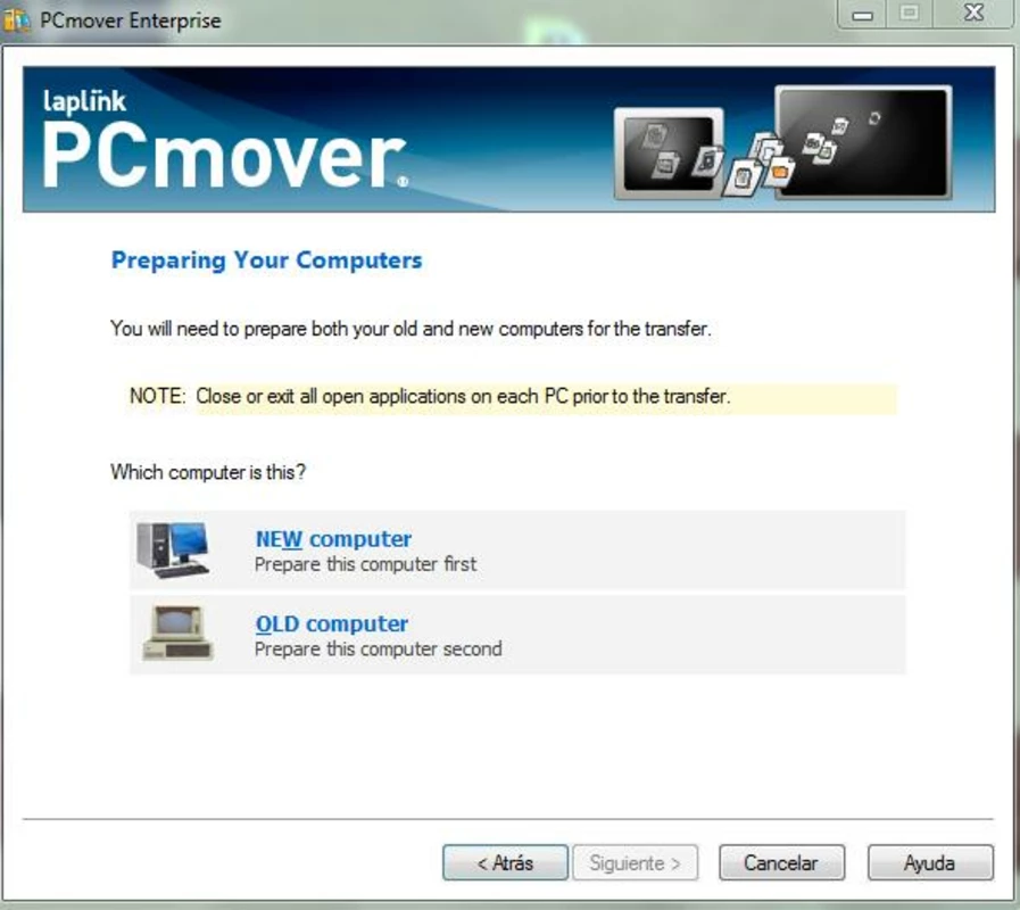
Upon first launch, PCmover greets you with a welcome screen. Click Start Migration to open the wizard. The wizard consists of four primary screens:
- Source & Destination Selection: Choose your old computer (source) and the new computer (destination). Both PCs must be powered on and connected to the same network if you plan to use Wi‑Fi.
- Transfer Method: Select CD/DVD, USB cable, or Wi‑Fi. For most users, Wi‑Fi offers the fastest setup, but a USB cable provides the most stable connection for large data sets.
- Data Selection: Decide whether to migrate everything or pick specific folders. You can expand each user profile to see detailed categories (e.g., Documents, Pictures, Applications).
- Review & Confirm: PCmover displays a summary of the selected items and estimated transfer time. Confirm to start the migration.
4. Monitoring the Transfer
During migration, a progress bar shows the overall status, while a detailed log lists each file being transferred. PCmover automatically handles file permissions and registry entries for applications, ensuring they work out‑of‑the‑box on the new system.
5. Post‑Migration Steps
When the process finishes, PCmover prompts you to restart the destination PC. After rebooting, verify that your files, settings, and applications are present. If anything is missing, use the built‑in “Scan for Missing Items” utility to locate overlooked data.
The entire workflow typically takes 30 minutes to a few hours, depending on the amount of data and the transfer medium. PCmover’s clear UI and step‑by‑step guidance eliminate guesswork, making it accessible even for users without a technical background.
Compatibility, Pros & Cons
PCmover is built to work with every mainstream Windows operating system released in the past decade, including Windows 7, Windows 8/8.1, Windows 10, and Windows 11. The software automatically detects the OS version on both source and destination machines, adjusting its migration engine accordingly. For legacy systems that still run Windows XP, a limited‑feature version of PCmover is available, though users are encouraged to upgrade to a supported OS for full functionality.
Pros
- Comprehensive Migration: Moves applications, settings, and files, not just data.
- User‑Friendly Interface: Guided wizard reduces complexity for non‑technical users.
- Multiple Transfer Options: Flexibility to choose CD, USB, or Wi‑Fi based on available hardware.
- Secure Transfer: Encryption protects sensitive information during migration.
- Regular Updates: Ongoing support for the latest Windows releases.
- Rollback Capability: Ability to revert changes if migration encounters issues.
Cons
- Windows‑Only: No native support for macOS, Linux, Android, or iOS.
- License Cost: Not free; pricing starts at a mid‑range price point for home users.
- Large Transfers May Be Slow: Wi‑Fi speed is limited by network conditions; USB or Ethernet may be required for massive data sets.
- Potential Compatibility Issues: Very old applications may not run on newer Windows versions after migration.
Overall Rating: 4 out of 5 stars
PCmover delivers on its promise of a hassle‑free migration, especially for Windows‑centric environments. While the cost and platform limitation are notable, the depth of migration (including apps and settings) justifies the investment for most users.
FAQ & Conclusion
Can PCmover transfer software licenses?
PCmover copies the registry entries and activation files for most licensed applications. However, some vendors require re‑activation on the new hardware, so you may need to enter your license key again after migration.Is there a free trial available?
Yes, Laplink offers a 7‑day free trial that allows you to test the full feature set on a limited data set. The trial version displays a watermark after migration but otherwise works identically to the paid version.What happens if the migration is interrupted?
PCmover creates checkpoints during the transfer. If the process stops unexpectedly (e.g., power loss), you can resume from the last checkpoint without restarting the entire migration.Can I use PCmover to clone a hard drive?
While PCmover migrates files, settings, and applications, it does not create a sector‑by‑sector clone. For exact disk imaging, you would need dedicated cloning software.Is technical support included with the purchase?
All paid licenses include 24/7 phone and chat support, as well as access to an online knowledge base. Free trial users have limited access to community forums only.In summary, PCmover stands out as a robust solution for anyone looking to transition between Windows PCs without the headache of manual file copying. Its comprehensive feature set, secure transfer methods, and user‑centric wizard make it a top choice for both home users and small‑to‑medium businesses. Although it is limited to the Windows ecosystem and carries a modest price tag, the time saved and the reduced risk of data loss often outweigh these drawbacks.
If you’re ready to upgrade your workstation, consolidate your data, or simply ensure a clean migration, download PCmover today and experience a smooth, secure, and virtually error‑free transfer process.







